01 TITLE · AI PHOTO TAGGING

Give this Skill a photo folder. Get a reviewable tag library.

tagging-skill scans images, stores categorized tags and descriptions, and opens a local page where you can search, filter, remove, restore and add tags.

Your original images stay where they are. The Skill drafts the metadata; you decide which tags to keep.

9 user supplied images42 tags9 descriptions0 failures

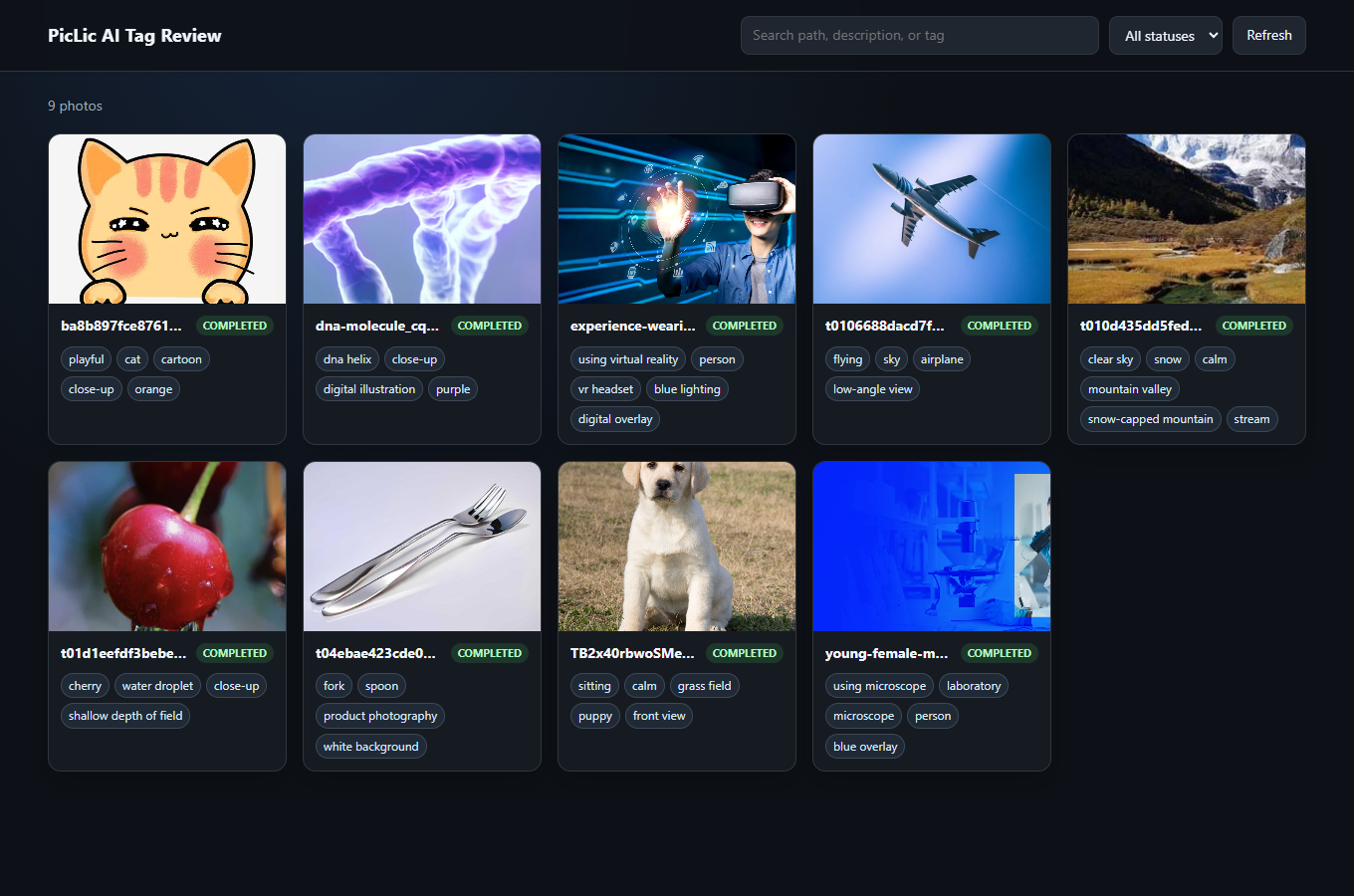
The run included photographs, an illustration and composite imagery. Completion counts do not measure tag accuracy.

Review page showing all nine images as completed
Actual local review page with nine completed images
ACTUAL RUN ✓
02 Before / After

Find images by what they show, not just by filename

This run checked the result grid, individual details and keyword search after tagging.

Find a particular image

BeforeA cherry photo sits somewhere in a project or date folder. Finding it requires remembering its location or opening files one by one.

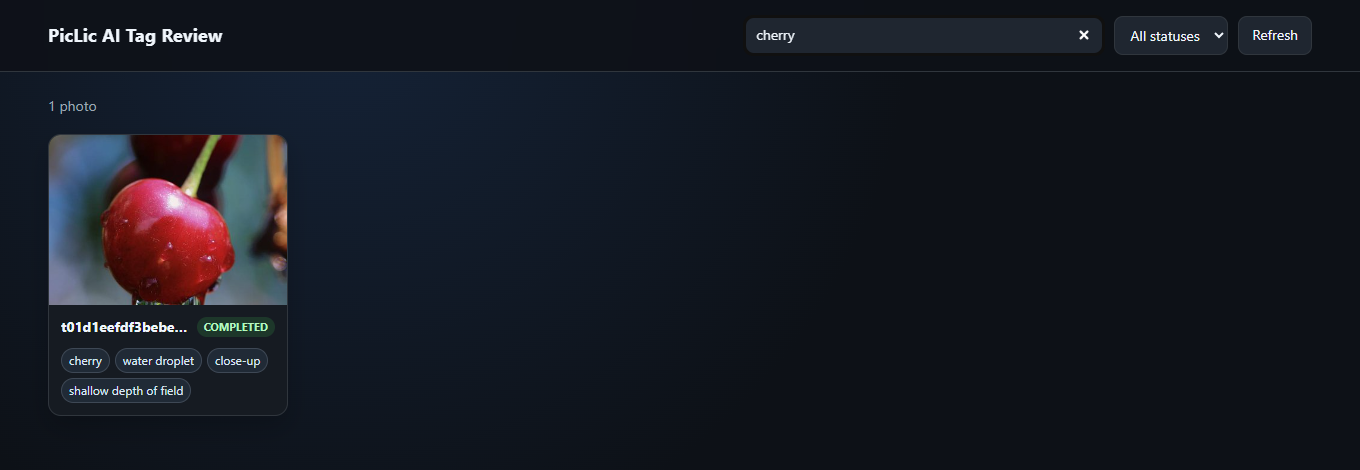
AfterThe Skill stored tags including cherry and water droplet. Searching cherry in the review page returned the image.

Visible content becomes searchable text.
Correct a tag

BeforeAn automatic tag may not fit your judgment, and a one-off deletion may be lost during another analysis.

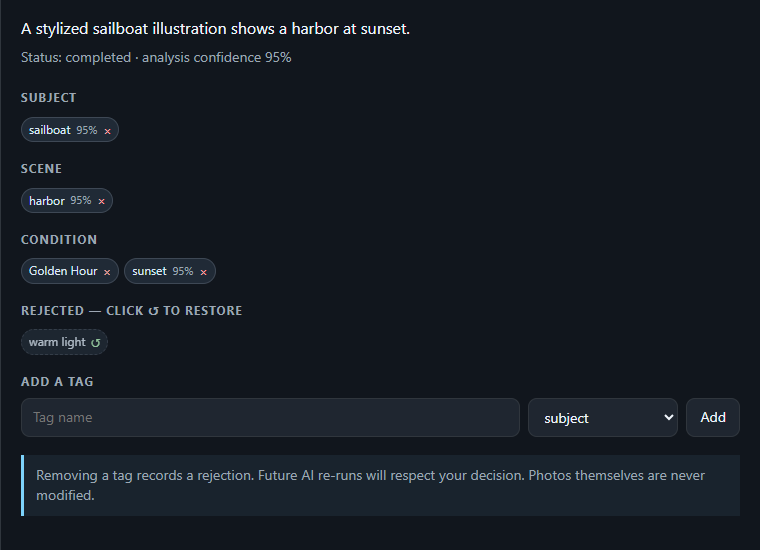
AfterYou can remove, restore and add tags. A removed tag leaves a rejection record that subsequent reanalysis respects.

Human decisions stay with the library.

The interaction screenshot uses separately prepared demonstration data.

Keep organizing the same folder

BeforeAs new photos arrive, you have to work out which files were already processed.

AfterA normal rerun skips unchanged completed images. Rescanning this run found zero added, changed or removed images and no pending work.

Existing results carry forward.

Incremental handling of newly added or changed files was not separately demonstrated here.

Actual list of nine completed images
Actual run: nine images completed and available for review.
03 Pain Point / Use Case

The image is in the folder. Its content is not in the filename.

A familiar search
You remember what the image shows, but the folder only remembers what it is called.

Finding and reusing assets falls back to memory and manual browsing.

Photographers and content teams often organize images by project or date. When they need a subject, scene or visual detail, filenames rarely answer the question. Writing keywords for every image by hand is difficult to maintain.

A full asset manager can add another import and maintenance workflow. A one-time tagging pass still leaves incorrect labels and future additions to manage. For a folder-based library, a searchable, editable metadata layer is a direct way forward.

04 Transition
Keep the photos in place. Make the tags open to correction.

tagging-skill builds metadata beside a chosen folder and presents each result for human review. The Agent produces a first pass; the user makes the final call.

05 Solution

One folder becomes an ongoing reviewable tag library

01

Point to a folder

Provide a folder containing JPG, JPEG, PNG or WebP images, including any subfolders. Original files remain in place.

02

Generate a first pass

A vision-capable Agent writes a description and tags under subject, scene, activity, visual, condition and mood.

03

Review locally

Filter by status, search stored text, inspect descriptions and edit tags. Run the Skill again as the folder changes.

The tag database lives inside the photo folder. The local review page does not run AI tagging. Image analysis is performed by the Agent running the Skill, and whether that involves a remote model depends on the host environment.

06 Real Cases / Outputs

Nine images tagged, with results you can inspect

Initial tags in these cases came from the actual vision pass and were not manually seeded.

CASE 01 / CHERRY CLOSE-UP

Search for a cherry by its visible content

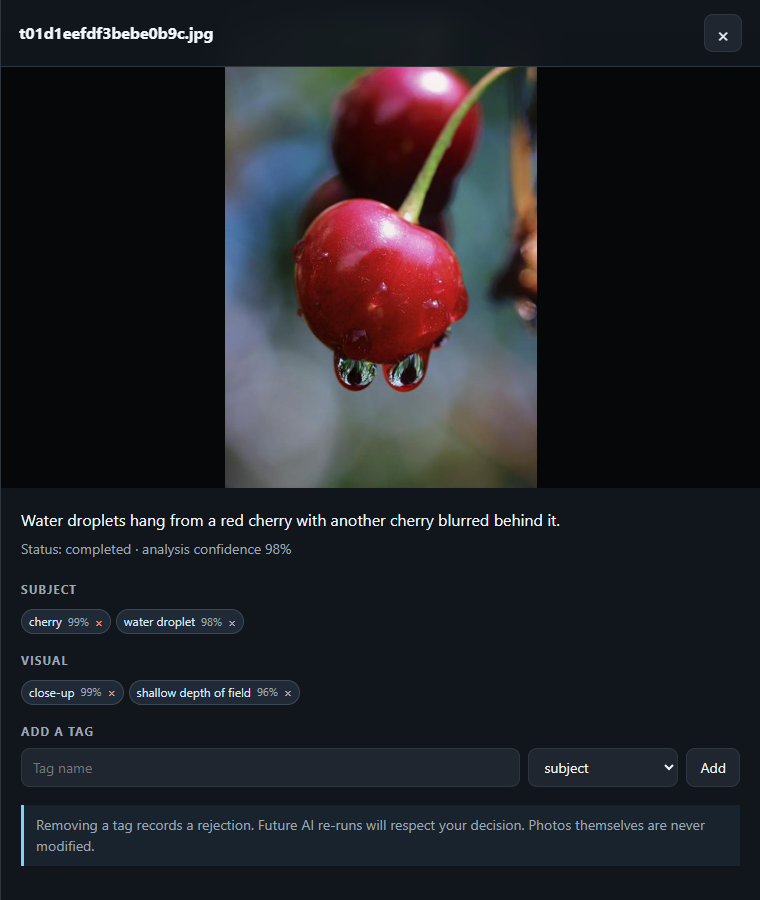
The image shows a red cherry with droplets, with another cherry blurred behind it. The Skill produced four tags:

cherrywater dropletclose-upshallow depth of field

“Water droplets hang from a red cherry with another cherry blurred behind it.”

Searching cherry in the review page returned this photo.

Actual description and tags for the cherry image
Actual cherry search result
Actual search: cherry returned one image.
Demonstration of editing and restoring tags
Review interaction demo. Its starting tags were manually prepared, not part of the vision run.
Composite image of a person using a VR headset
CASE 02

VR experience

Subject, action and visual overlay entered separate tag categories, giving multiple ways to locate the same image.

person · VR headset · using virtual reality · digital overlay · blue lighting
Orange cartoon cat illustration
CASE 03

Cat illustration

The Skill also produced reviewable tags for an illustration in a supported format. This does not demonstrate performance on real cat photos.

cat · cartoon · close-up · orange · playful

All nine images completed with zero failed items. Displayed confidence values are model-reported evidence strength, not measured accuracy. This run did not measure time saved.

07 Core Advantages

A tag library that continues with your folders

01

Work with existing folders

Original images stay in place, while the database is stored inside the chosen folder. Start with the assets you already have.

02

Edit the first pass

Inspect descriptions and categorized tags for each image, then remove, restore or add tags as needed.

03

Carry human rejections forward

Removing a tag creates a rejection record. Later analysis of that image respects the recorded decision.

04

Continue from changes

Normal reruns prioritize new, changed or previously failed images. The unchanged images in this run produced no pending work on rescan.

08 Why It Matters

Keep visual clues and human judgment with the library.

As a collection grows, it is easy to lose track of what each image contains and why a label was kept or rejected. tagging-skill lets new images join the same metadata library and lets each review decision inform later work.

Finding an image need not start with opening every file again.

09 CTA

tagging-skill

Provide the absolute path to your photo folder. The Skill scans supported images, writes tags and descriptions, and opens a local page where you can inspect, remove, restore and add tags.

Supports JPG, JPEG, PNG and WebPFind tagging-skill on Finch ↗